Robinhood Take Profit and Stop Loss: Set Both Together
Set a Robinhood take profit and stop loss together. Learn TP/SL setup, percentage targets, order cancellation, and Robinhood Legend.

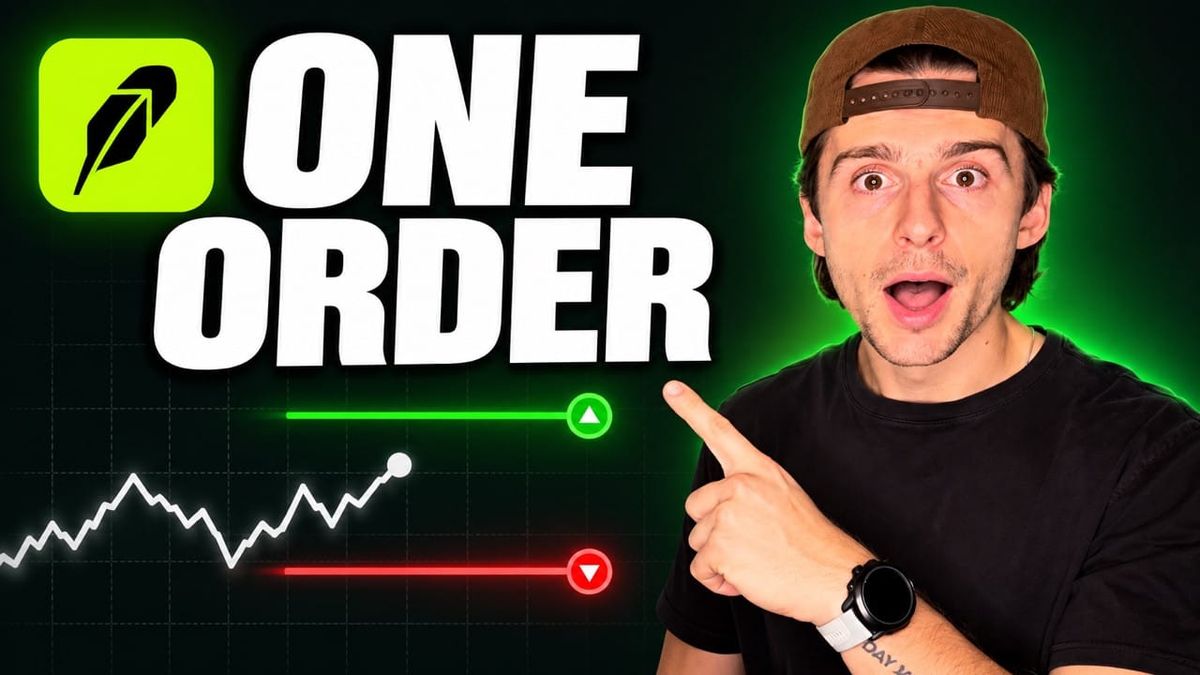
Want to set both exit targets for a stock you already own? Robinhood take profit and stop loss orders can be configured together through the app's Set TP/SL feature. The walkthrough also shows how to do it on desktop with Robinhood Legend.
Affiliate disclosure: This article includes affiliate links, which means TC Trading may receive a small commission.
The important part is finishing the review and submission. Moving a target on a chart or saving a price does not submit the order. Here's how to set both targets, check the details, and cancel and replace them later, using TC Trading's SoFi demonstration.
Table of Contents
- Table of Contents
- Key Takeaways
- Robinhood Take Profit and Stop Loss: Prerequisites
- Step-by-Step Guide in the Robinhood App
- How to Cancel and Replace Your Targets
- How to Set TP/SL on Robinhood Legend
- Common Mistakes to Avoid
- Frequently Asked Questions
- Conclusion: Check Both Targets Before Submitting
Key Takeaways
- TP/SL combines a take-profit target and a stop-loss target for an existing position.
- The app lets you work with exact prices or P&L percentages.
- Saving targets is separate from reviewing and submitting the order.
- The demonstrated order is limited to market hours; check the trading-session details during review.
- The targets are linked. In the demonstration, manually canceling either leg cancels both.
- On desktop, the combined workflow is shown in Robinhood Legend, not the classic web order menu.
Robinhood Take Profit and Stop Loss: Prerequisites
To follow along, you'll need the Robinhood app and a stock or ETF position already held in your account. The video describes using shares that have no open orders on them. For the desktop walkthrough, you'll need to open Robinhood Legend.
This is a beginner-friendly order-entry tutorial. You should know which position you want to manage and the exit prices or percentages you want to enter before submitting.
TC Trading buys one SoFi share for the demonstration, with an entry price of $14.45. Buying a new share is not a required step if you already hold a suitable position. All prices and percentages below are examples, not investment recommendations or promises about execution prices or results.
Step-by-Step Guide in the Robinhood App
1. Open Your Existing Position
Navigate to the stock or ETF you hold and scroll down to Your position. Look for Set TP/SL alongside the option to close the position, then tap it.
The TP/SL screen displays the entry price, the live market price, and both exit targets. Those prices serve different purposes: your entry is the reference for the position, while the take-profit and stop-loss levels are the exit targets you're configuring.
2. Set Exact Exit Prices
With Price selected, drag the take-profit and stop-loss lines to the levels you want. In the first SoFi example, the setup is:
| Setting | Example price |
|---|---|
| Entry price | $14.45 |
| Stop-loss target | $13.99 |
| Take-profit target | $15.00 |
For this example, the goal is to exit below $14, so the stop-loss target is set at $13.99. The take-profit target is set at $15.
Dragging is convenient, but you can also tap the values under Set exit targets and type the exact prices. Tap Save after editing. At this stage, you've configured the targets; you still need to continue through review and submit.
3. Use P&L Percentages Instead
If you prefer working in percentages, switch from Price to P&L, meaning profit and loss. This is an alternative way to configure the same targets, rather than a separate order you need to add.
The percentage example uses a 10% take-profit target and a 5% stop-loss target. After saving, the app adjusts the displayed price levels:
| P&L setting | Price displayed in the demonstration |
|---|---|
| 5% loss target | $13.73 |
| 10% gain target | $15.90 |
These replace the earlier $13.99 and $15 targets. The percentages describe the example's planned exit levels, not dollar amounts or guaranteed gains and losses. Check the resulting prices before moving on.
4. Review Duration, Shares, and Trading Session
Tap Continue to reach the review process. Check both targets, the number of shares, time in force, and the trading session.
For a day-trade example, the presenter points to an ending time of 4:00 p.m. For the swing-trade example actually being configured, he selects Good till canceled, shown in the video as lasting up to 90 days. Treat that as the demonstrated setting and read the duration displayed on your own review screen.
The order shown is available during market hours only. The presenter distinguishes that session from premarket, after-hours, and overnight trading. Don't assume the demonstrated TP/SL order covers those other sessions.
5. Submit and Find the Order
After checking the settings, tap Review and complete the swipe to submit. Then use View order to inspect the submitted order.
You can also return to the stock's page and scroll to Upcoming activity. In the walkthrough, the SoFi TP/SL order appears there with its placement date and price levels. Open that entry to view the order details or access cancellation.
This final check matters: the chart configuration, saved targets, and submitted order are different stages of the workflow.
How to Cancel and Replace Your Targets
There are two routes for replacing the existing setup in the app. From the stock page, open the order under Upcoming activity, choose Cancel order, and then create a new TP/SL order using the same process.
Alternatively, open the app's advanced chart. The stop-loss and take-profit lines are connected, showing that they belong to one linked setup. This is an OCO, or one cancels the other, order.
Tap either target to reveal an X, then use it to cancel. In the demonstration, canceling one leg cancels both legs. Both targets disappear after cancellation, so don't expect the other target to remain in place.
To create the replacement from the advanced chart, select the existing position and drag the take-profit and stop-loss targets where you want them. Tap Continue and swipe to submit. This reaches the same type of order through the chart instead of the position-page button.
How to Set TP/SL on Robinhood Legend
The classic Robinhood web platform shown in the video lists separate order choices, including trailing stop, stop limit, stop loss, and limit. It does not show the combined TP/SL choice in that menu. The desktop demonstration moves to Robinhood Legend instead.
Select the stock from your positions in Legend, then use either of these routes.
Use the Legend Chart
Hover over your position on the chart, select TP, and drag the take-profit target. Set the stop-loss target from the position as well.
Dragging the targets does not place the order. Click Continue, then check that the confirmation page shows TP/SL as the order type. In the SoFi example, the presenter clicks Sell SoFi to submit.
The submitted targets appear connected on the chart. The demonstration again shows that deleting the take-profit leg also removes the stop-loss leg.
Use the Legend Order Ticket
You can also start from Sell in Legend and select TP/SL under the order type. Configure both targets using exact prices or P&L percentages, then check the details before submitting with the stock's sell button.
This gives you the same combined setup without dragging targets on the chart. The key check is the TP/SL order type, whichever entry route you use.
Common Mistakes to Avoid
- Stopping after Save: Saving edited targets does not submit the order.
- Mixing up entry and market price: The video shows a $14.45 entry while the live market price moves separately.
- Overlooking the percentage conversion: After switching to P&L, review the resulting price targets.
- Skipping duration and session details: Check how long the order lasts and the trading session shown.
- Canceling one leg and expecting the other to stay: The targets are linked and cancel together.
- Looking only in classic web: The desktop combined-order walkthrough uses Legend.
Frequently Asked Questions
What does TP/SL mean?
TP means take profit, and SL means stop loss. The demonstrated TP/SL setup lets you configure both exit targets together for a position you already hold.
Do I need to buy a new stock first?
No. The presenter buys one share only to demonstrate the process. He explains that you can use an existing stock or ETF position with no open orders on those shares.
Can I enter prices instead of dragging the lines?
Yes. In the app, tap the prices under Set exit targets, enter the exact levels, and save. Continue through review and submission afterward.
Can I set targets using percentages?
Yes. Select P&L instead of Price. The video uses a 5% loss target and a 10% gain target, which the app displays as $13.73 and $15.90 for that example.
Does tapping Save submit the order?
No. Save updates the target settings. You must still continue to review and complete submission. The same distinction applies when dragging targets in Legend.
What happens if I cancel one linked target?
In the demonstrated app and Legend chart workflows, canceling either target removes both. To use revised levels, create and submit a replacement setup.
Why can't I find the combined order on classic web?
The classic web order menu shown in the video does not include combined TP/SL. The demonstrated desktop alternative is Robinhood Legend, using either its chart or order ticket.
Conclusion: Check Both Targets Before Submitting
Setting Robinhood take profit and stop loss targets together comes down to choosing your levels, reviewing the full order, and completing submission. Check the shares, duration, trading session, and linked targets before confirming, then locate the submitted order afterward.
For the full app and desktop walkthrough, watch the original TC Trading video.